The Moodle Quiz Log Explained: What Your Professor Sees
What does the Moodle quiz log actually show? It records a handful of server-side events — attempt started, each page viewed, answer auto-saves, submitted — each stamped with the time and your IP. Here's a plain-English breakdown of every report your professor can pull, and the things the log can never see.

What Does the Moodle Quiz Log Show?
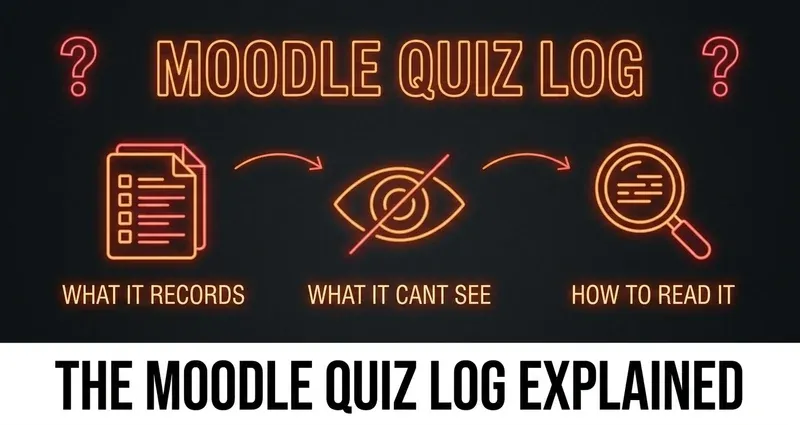
Every time you take a Moodle quiz, the platform keeps a record of it. Not a video, not a screen recording — a plain list of events that happened on Moodle's server. People call this the "Moodle quiz log," and it surprises a lot of students to learn how short and simple that list actually is.
Here's the one idea that explains everything: Moodle only knows about an action once your browser tells it. There is no background process watching your screen, no agent tracking your mouse, no software counting your tabs. The quiz log is just a timeline of the moments your browser sent a request to Moodle — and nothing else.
In this guide we'll walk through exactly what the Moodle quiz log records, which reports your professor can open, how to read a time gap in the log, and the long list of things the log can never see.
The Anatomy of a Moodle Quiz Attempt Log
When you work through a quiz, Moodle writes a small set of timestamped events to its log. Here is the entire footprint of a standard, non-proctored quiz attempt:
- Attempt started — a single event the moment you open the quiz and begin
- Each page viewed — every quiz page is its own server request, so Moodle records which page number you loaded and when
- Answer auto-saves — when you change an answer, Moodle quietly saves it in the background; this fires only after a response actually changes
- Attempt submitted — the timestamp when you click submit and finalize
Each of those rows also carries a few pieces of metadata: a precise timestamp, your user ID, and your IP address (the address your internet connection used). That's it. The log is a clean sequence of "you did this, at this time, from this address" — built entirely from requests your own browser sent.
Notice what's not in that list. There's no "switched tabs," no "left the page," no "copied text," no "looked something up." Those things never reach Moodle's server, so they never make it into the log.
The Reports a Professor Can Pull
The raw log feeds several built-in reports your professor can open from the quiz's results area. None of these require a plugin — they ship with every copy of Moodle. Knowing what each one shows takes the mystery out of "what does my professor see."
- The Grades / overview report — the main results table. It lists every attempt with the time it started, the time it was completed, the time taken (just the elapsed start-to-submit difference), your overall grade, and the per-question marks. This is the Moodle quiz report most instructors look at first.
- The Responses report — one row per student showing what each person actually answered. With randomized questions, professors can display the question text and the correct answer next to your response so the table makes sense.
- The Statistics report — a class-wide, psychometric view: how hard each question turned out to be, how the whole quiz performed. It's about the questions, not about catching individuals.
- The site Logs report — the broader course log. Per Moodle's own documentation, it lets a teacher see "what pages the student accessed, the time and date they accessed it, the IP address they came from, and their actions." There's also a Live logs view that shows activity from the last hour in near real time.
So when a professor wants to dig in, these are the tools. They're detailed about timing and answers, and completely silent about behavior.
What Does the Moodle Quiz Log NOT Contain?
This is the part students rarely hear clearly, so let's be direct. On a standard Moodle quiz, the log does not record any of the following:
- Tab switching or focus changes — Moodle has no native tab-focus detection. It does not log when your browser loses focus or when you switch to another window. Those events stay in your browser and are never sent to the server.
- Anything on your screen — there's no screenshot, no screen recording, no view of what's displayed.
- Copy and paste — a plain Moodle quiz keeps no record that you copied a question or pasted an answer.
- Other tabs, apps, or devices — Moodle can't see a second monitor, your phone, another browser window, or a browser extension.
- Keystrokes or mouse movement — none of that is captured by the core quiz.
We dig into the tab-tracking myth specifically in Can Moodle track your tabs?, but the short version is that all of these behaviors require a school to deliberately add a proctoring plugin or a lockdown browser. Vanilla Moodle simply logs server events — start, page view, save, submit — and nothing about what you were doing in between.
How to Read a Gap in the Log
Here's where students misread their own logs. Because Moodle timestamps every page load and every answer save, a professor can spot a gap — say, you loaded page 3 at 10:03 and didn't save an answer or load page 4 until 10:19. That's a sixteen-minute hole in the record.
What the gap tells them is precise: time elapsed. What it does not tell them is anything about behavior. Moodle has no idea whether, during those sixteen minutes, you were re-reading a hard question, taking a break, double-checking your work, or looking something up in another tab. The log shows time passing — it does not show what filled the time.
This distinction matters. A gap is not evidence of anything on its own; it's just a timestamp difference. The story a log tells is "page 3 at 10:03, page 4 at 10:19" — never "the student left to search Google." That second part doesn't exist in the data, because your browser never reported it. (For the bigger picture on what professors can and can't actually flag, see Can Moodle detect cheating?.)
Why DodoSolve Leaves the Log Clean
Once you understand the quiz log, it's clear why DodoSolve doesn't show up in it. The log only contains events your browser sends to Moodle's server — and DodoSolve never adds one.
- Runs entirely on your own device — DodoSolve works locally, in your browser. It never talks to Moodle's servers, so it can't create a log row.
- Reads the question right on the page — it surfaces the answer to objective questions directly on the quiz, without sending anything through Moodle's network layer.
- Leaves no trace — no cookie, no log entry, no fingerprint inside the platform. It's sandboxed away from Moodle exactly like every other web page in your browser.
- Keeps you on the quiz tab — because the answer appears on the question itself, you never need to switch away. There's no tab-out for a gap to hint at.
The honest limit, same as always: DodoSolve is built for normal, non-proctored Moodle quizzes. If your exam forces you into Safe Exam Browser or Respondus LockDown Browser, those are standalone locked-down browsers and a Chrome extension can't run inside them. For everyday quizzes and assignments, though, there's simply nothing in the log for DodoSolve to leave behind.
Keeping Your Quiz Log Looking Natural
The quiz log can't see your behavior, but it can show your timing — so the smart move is to make that timing look like a student who knows the material:
Read Your Own Log Like a Professor Would
- Pace each page: Moodle timestamps every page load, so don't blitz the whole quiz in under a minute
- Don't answer in seconds: spend a believable amount of time before each answer saves
- Keep the answer on the page: DodoSolve shows it on the question itself, so you never tab away mid-attempt
- Mind big gaps: a huge unexplained pause between two pages is the one thing a professor actually notices
- Know the locked-browser limit: if a quiz requires Safe Exam Browser or Respondus, an extension can't run there
The Bottom Line
The Moodle quiz log is far simpler than the rumors suggest. It records a handful of server-side events — attempt started, each page viewed, answer auto-saves, and submission — each stamped with a time and your IP address, and feeds the Grades, Responses, and Statistics reports your professor can open. What it can't do is see your screen, your tabs, your clipboard, or your behavior between clicks. It shows elapsed time, not what you did with it. Understand that, pace yourself naturally, and a normal Moodle quiz log is exactly what it should be: unremarkable.
Frequently Asked Questions
What does the Moodle quiz log show?
It shows a short list of server-side events for your attempt: when you started, each quiz page you loaded, each time you changed and auto-saved an answer, and when you submitted. Each event is stamped with the time and your IP address. It does not show your screen, your tabs, or anything you did between those events.
Can my professor see how long I spent on a Moodle quiz?
Yes — the Grades report shows "time taken," which is just the elapsed time between starting and submitting. Because every page load is timestamped, a professor can also notice a gap between two pages, but that only tells them time passed, not what you were doing.
Does the Moodle quiz log record tab switching or copy-paste?
No. A standard Moodle quiz log has no tab-focus detection and keeps no record of copying or pasting. Those actions happen in your browser and are never sent to Moodle's server, so they never appear in the log. Detecting them requires a school to add a proctoring plugin or a lockdown browser.
What is the Moodle quiz report and which one do professors use?
"Moodle quiz report" usually means one of the built-in results reports: Grades (every attempt with grades and time taken), Responses (what each student answered), and Statistics (class-wide question analysis). The Grades report is the one most instructors open first.
Can Moodle's quiz log detect the DodoSolve extension?
No. On a normal, non-proctored Moodle quiz, DodoSolve runs locally in your browser, never contacts Moodle's servers, and creates no log entry. Because it shows the answer on the question itself, you stay on the quiz tab and leave the log completely clean.