How to Use ChatGPT on Moodle (the Smart Way)
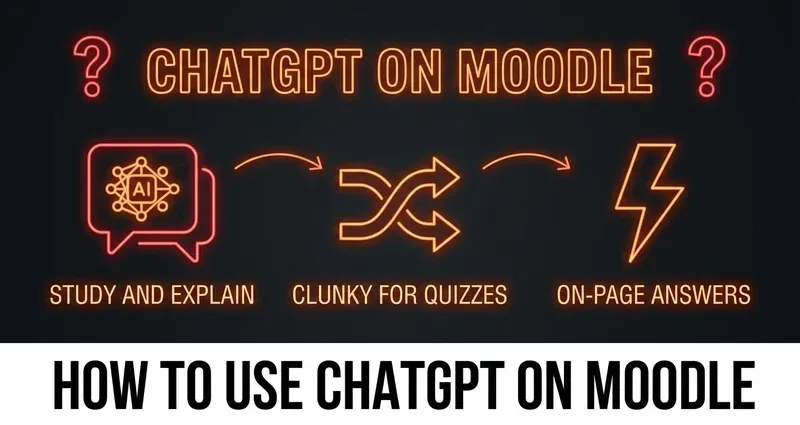
ChatGPT is genuinely useful for Moodle coursework — for explaining concepts, drafting, and studying. It just gets clunky the moment you're sitting on a live quiz. Here's how to use it well, where it stops being the right tool, and what to reach for instead.

How Students Actually Use ChatGPT on Moodle
If you're searching for how to use ChatGPT on Moodle, you already know the basics: Moodle holds your courses, quizzes, and assignments, and ChatGPT is sitting in another tab waiting to help. The honest truth is that ChatGPT is a fantastic study partner for some of that work and a genuinely awkward fit for the rest of it.
This guide is the realistic version. We'll cover what ChatGPT Moodle workflows are actually good at, where they start fighting you — especially on quizzes — and the one caveat that matters for written submissions. Then we'll talk about a cleaner path for the part ChatGPT handles worst: answering objective quiz questions right on the page.
What ChatGPT Is Genuinely Good At
For everything that happens before the graded moment, ChatGPT earns its place in your workflow. Used as a study tool rather than an autopilot, it's one of the best things to happen to self-paced learning.
- Explaining concepts in plain English. Paste a lecture slide, a confusing paragraph from the reading, or a worked example you don't follow, and ask ChatGPT to re-explain it. It's like having a TA who never runs out of patience.
- Drafting and outlining written work. For essays, discussion-forum posts, and short answers, ChatGPT is great at producing an outline, suggesting a structure, or unsticking a blank page. The strongest workflow is to draft with it, then rewrite in your own voice — not to paste its output untouched.
- Building a study guide. Feed it your topic list and have it generate practice questions, flashcard prompts, or a summary you can quiz yourself against before the real thing.
- Checking your own work. Wrote an answer and want a second opinion? Ask it to poke holes in your reasoning. You learn more from the critique than from the answer.
None of this touches a graded quiz directly, and that's exactly why it's the safest, most defensible way to use AI on Moodle. You're using it to understand the material, which is the whole point.
Where ChatGPT Gets Clunky for Moodle Quizzes
The moment you're sitting on a live Moodle quiz, the same tool that felt effortless for studying starts working against you. Here's the friction students run into with ChatGPT for Moodle quizzes, in order of how much it slows you down.
1. The copy-paste back-and-forth
The standard move is to open ChatGPT in another tab, copy the question over, read the reply, then come back and type the answer in. Do that for one question and it's fine. Do it for thirty and you're spending more time shuttling text between tabs than thinking. Multiple-choice questions are the worst, because you have to copy every option too or ChatGPT is guessing blind.
2. ChatGPT can't see your screen
ChatGPT only knows what you paste into it. It can't see the question as it actually appears in Moodle — the exact wording, the answer options, the image attached to it, or whether it's a "select all that apply." If you paraphrase the question even slightly, or forget an option, you can get a confidently wrong answer. You're acting as the translator between Moodle and the AI, and translation introduces mistakes.
3. The tab-switching slows you down (and looks like it)
Every trip to another tab is a trip away from the quiz. Moodle doesn't have built-in tab tracking on a normal quiz — but the timing still shows up. Round-tripping each question through a second tab is slow, and slow-plus-choppy pacing is exactly the pattern that reads as "looking things up." The fix isn't to type faster; it's to not leave the page at all.
4. For written work, there's an AI-detection caveat
This one is specific to written submissions, not objective quiz answers. Moodle's core software does not detect AI writing on its own. But some schools add a plagiarism plugin like Turnitin on top, and Turnitin runs an AI-writing indicator on essays and long-form text. Those detectors are far from perfect — false positives are real, and the scores are vendor claims, not gospel — but if you paste raw ChatGPT prose into an essay box, it's a risk worth knowing about. We dug into exactly what does and doesn't get scanned here: does Moodle detect AI and ChatGPT?
To be clear: this detection caveat is about written essays and submissions. Objective quiz answers — multiple choice, true/false, fill-in-the-blank — aren't "AI writing," so there's no AI-writing score on them. The real friction on quizzes is the workflow, not a detector.
The Honest Version of "Will I Get Caught?"
It's worth being straight about this, because a lot of pages online aren't. Nobody can promise that ChatGPT prose is undetectable in an essay — that's an overclaim, and the detectors, flawed as they are, do exist. The smart way to use ChatGPT for written Moodle work is to treat it as a drafting and study assistant and then make the work genuinely yours, not to gamble on a detector missing a copy-paste.
For objective quizzes, the question is different. There's no AI-writing score on a multiple-choice answer, so the only thing working against you is the clumsy copy-paste-and-tab-switch routine. That's a workflow problem — and workflow problems have clean solutions.
A Cleaner Path for Moodle Quiz Answers
This is where a purpose-built tool beats general-purpose ChatGPT, because it's designed for exactly one job: answering objective Moodle questions where they already live. That's what DodoSolve does.
- It answers on the page. DodoSolve reads the question directly inside your Moodle quiz and surfaces the answer right there. No copying the question out, no pasting the answer back.
- No tab-switching. Because the answer appears on the question itself, you never leave the quiz tab — which removes the choppy pacing that comes from round-tripping through ChatGPT.
- It sees the real question. Unlike a chat tab you have to feed by hand, DodoSolve works from the question as it actually appears — wording, options, and all — so there's no translation step to get wrong.
- It runs locally and leaves no trace. DodoSolve works on your own device and doesn't touch Moodle's servers, so it leaves nothing behind in the platform.
Two honest limits, because we'd rather you know going in: DodoSolve is built for objective questions — the multiple-choice, true/false, and fill-in-the-blank kind — not for writing your essays. And it only works on normal, non-proctored quizzes. If your exam forces you into Safe Exam Browser or Respondus LockDown Browser, those are standalone locked-down browsers, and no Chrome extension can run inside them — DodoSolve included. On everyday Moodle quizzes and homework, though, it's the difference between a study tool and a tab-juggling chore.
Skip the tab-juggling.
DodoSolve reads your Moodle quiz question and surfaces the answer right on the page — no second tab, no copy-paste, nothing left behind. Built for objective questions on normal, non-proctored quizzes.
So, How Should You Use ChatGPT on Moodle?
Match the tool to the task, and the whole thing gets simpler:
- Studying, explaining, drafting, reviewing? ChatGPT is excellent. Use it generously and learn from it.
- Written essays and forum posts? Draft with ChatGPT, then make it genuinely yours — and remember the AI-detection caveat for raw pasted prose.
- Objective quiz questions? Skip the copy-paste gauntlet. A Moodle-native tool that answers on the page is faster and cleaner than translating every question into a chat tab.
If you want to compare the dedicated options head-to-head, we broke them down in the best Moodle answer tools.
The Bottom Line
ChatGPT is a brilliant study partner and an awkward quiz-taker. For understanding material, drafting, and reviewing, it's hard to beat. For live Moodle quizzes, the copy-paste-and-tab-switch routine is slow and error-prone, and for written work there's a real (if imperfect) detection caveat to respect. The smart way to use ChatGPT on Moodle is to let it do the learning-heavy work — and to use a purpose-built, on-page tool like DodoSolve for the objective quiz answers it handles worst.
Frequently Asked Questions
Can you use ChatGPT on Moodle?
Yes — Moodle is a normal web app, so nothing stops you from using ChatGPT in another tab to study, explain concepts, or draft written work. It's genuinely useful for that. It's just clunky for live quizzes, where you have to copy each question out and paste the answer back.
Is ChatGPT good for Moodle quizzes?
For objective quizzes it's awkward. ChatGPT can't see your screen, so you have to copy every question and option into it by hand, then transcribe the answer back — slow and easy to get wrong. A Moodle-native tool that reads the question and answers on the page is a much cleaner fit for that specific job.
Will Moodle detect ChatGPT?
Core Moodle has no AI detector. Some schools add a plugin like Turnitin that runs an AI-writing indicator on essays and written submissions — and those detectors are imperfect, with real false positives. Objective quiz answers aren't "AI writing," so there's no AI-writing score on them. See does Moodle detect AI and ChatGPT? for the full picture.
How is DodoSolve different from using ChatGPT on Moodle?
DodoSolve is built for one job: answering objective Moodle questions right on the quiz page. Instead of copying questions into a separate ChatGPT tab and pasting answers back, it reads the question in place and surfaces the answer there, runs locally without touching Moodle's servers, and never makes you switch tabs. It only works on normal, non-proctored quizzes — it can't run inside Safe Exam Browser or Respondus LockDown Browser.